Desktop app · fullscreen overlay
Mark up screenshots on top of your screen not in another window.
A fast desktop screenshot tool that puts a fullscreen overlay on top of whatever you’re looking at — drag to select a region, then annotate in place. No separate editor window pulling you out of context. Available on macOS today; Windows is coming soon.
No credit card required to try the app.
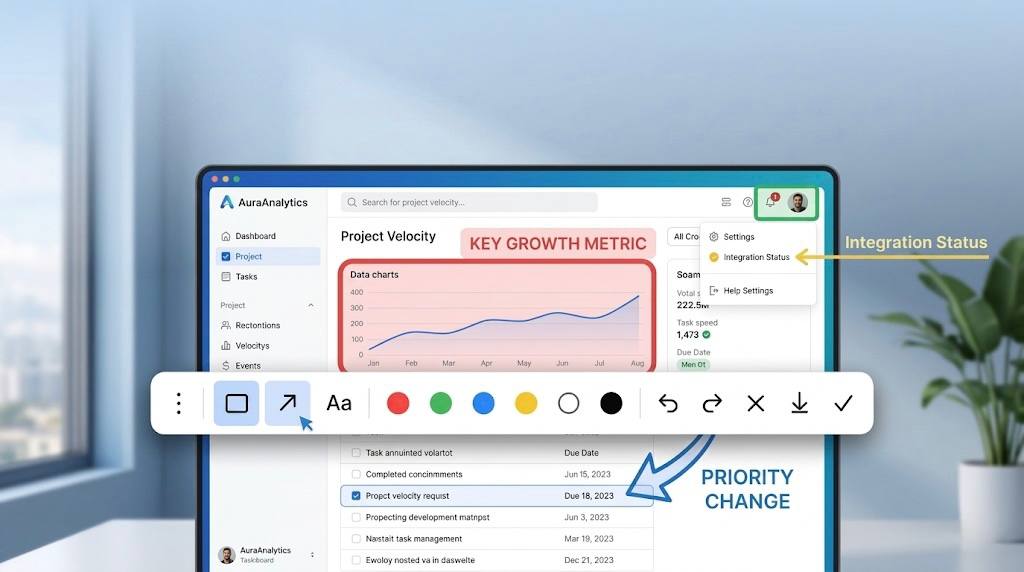
Everything you need to make your point.
Built around an on-screen overlay workflow — so you stay in context from capture to export.
Fullscreen overlay (not a separate editor)
Markup happens on an overlay above your desktop — unlike tools that yank you into a detached editor window after every capture.
Menu bar workflow
Stays in the menu bar so you can capture without a noisy dock-first app.
Global shortcut
Default ⌘⇧A for “Take screenshot” — change it anytime in Settings.
Sharp capture
Capture crisp, high-resolution screenshots that keep text, UI details, and annotations easy to read.
Shapes & text
Rectangles, arrows, and text annotations to point at what matters.
Preset colors
Quick color chips so markup stays consistent and fast.
Undo & redo
Step through annotation history without fighting the canvas.
Copy, save, download
Copy to the pasteboard, save a PNG, or use Download right from the overlay.
In-app updates
Get notified when a new version is available and install with one click.
Overlay, select, annotate — still on your screen
Three steps on the fullscreen overlay — the same flow you use inside the app, without a detached editor.
Overlay & select
ScreenFox covers your screen with a fullscreen overlay on top of what you’re already viewing. Drag a rectangle to choose the region — context stays in view, with no separate capture window.
Annotate in place
Draw rectangles and arrows, add text, and pick preset colors while you’re still looking at the real screen — refine with undo and redo without jumping to another app window.
Share
Copy the cropped region to the clipboard, save a PNG, or download from the floating toolbar on the overlay.
Stay in context — no editor window in the way
Many screenshot apps open a separate window for every capture. ScreenFox keeps you on the fullscreen overlay: you see the real UI underneath, drag a rectangle to frame what matters, and mark it up there. It's intentionally focused — if you need a sprawling capture suite, there are heavier tools; ScreenFox aims to feel light, fast, and visually anchored to what you were already doing.
Frequently asked questions
- How is ScreenFox different from other screenshot apps?
- ScreenFox uses a fullscreen overlay on top of your desktop: you select a region and annotate while the real screen is still visible underneath. Many other tools jump you into a separate editor window after each capture — ScreenFox keeps markup on the overlay so you don’t lose context.
- What platforms are supported?
- ScreenFox is available on macOS today — check the app’s requirements or your download page for the exact minimum OS version. A Windows version is in development and will be announced here when it’s ready.
- Why does ScreenFox ask for screen capture permission?
- Your operating system requires this permission for apps that capture the screen. On macOS it appears as Screen Recording. ScreenFox uses it only to take screenshots you initiate — nothing runs in the background without your action.
- How do updates work?
- ScreenFox checks for updates and lets you know when a new version is ready. Install from the prompt when it suits you.
- Is my data sent to the cloud?
- There is no cloud feature right now. ScreenFox does not upload your screenshots or annotations anywhere — nothing is sent to the cloud for capture and markup. Everything stays on your device.
- Where do I get a license key?
- Purchase through the link on the Pricing page once checkout is configured. You’ll enter the key in the app’s License settings.
- How do I report bugs or request features?
- You can report bugs and request features directly from the app. You can also email support@screenfox.io.